RHCSA RHEL 8 – Configure time service clients

Your support on Ko-Fi is much appreciated: https://ko-fi.com/csg_yt

Buy CSG Merchandise: http://tee.pub/lic/csg

More information on Sophos Home Antivirus: http://bit.ly/SophosHP

More information about Hostinger VPS: http://bit.ly/H-VPS

This video is based on RHEL 8. Video to cover the section ‘Configure time service clients’ for the RHCSA (Red Hat Certified System Administrator).

More information on the required learning: http://bit.ly/rhcsa8

Notes from the video:

To show the current date and time:

# date

To use date to print out the current date and time in a particular format you can use the date variable for example:

# date +%d%m%y-%H%M%S

This can be used in a script to produce a new log file name everytime the script is run for example:

# touch logfile-`date +%d%m%y-%H%M%S`.log

Will output a log file with the current date and time.

To get the current hardware clock time:

# hwclock

To set the system clock to hardware clock:

# hwclock -s

To set the hardware clock to the system clock:

# hwclock -w

The main command for managing the time is timedatectl, to see the current time and timezone information:

# timedatectl

To manually set the date and time:

# timedatectl set-time 2020-18-03

# timedatectl set-time 10:26:00

To set the timezone:

# timedatectl set-timezone Australia/Melbourne

To list all available timezones:

# timedatectl list-timezones

To get the timedatectl to use the Network Time Protocol (NTP):

# timedatectl set-ntp yes

The NTP deamon is no longer used as of RHEL8 so we need to use chrony. To install the application run:

# dnf install chronyd

Then start and enable the service:

# systemctl start chronyd

# systemctl enable chronyd

To edit the servers list edit the chrony.conf file and add entries starting with “server then IP address” and restart the chronyd service:

# vi /etc/chrony.conf

# systemctl restart chronyd

To see which servers chronyd is currently syncing with run:

# chronyc sources
RHCSA RHEL 8 – Configure systems to boot into a specific target automatically

Your support on Ko-Fi is much appreciated: https://ko-fi.com/csg_yt

Buy CSG Merchandise: http://tee.pub/lic/csg

More information on Sophos Home Antivirus: http://bit.ly/SophosHP

More information about Hostinger VPS: http://bit.ly/H-VPS

This video is based on RHEL 8. Video to cover the section ‘Configure systems to boot into a specific target automatically’ for the RHCSA (Red Hat Certified System Administrator).

More information on the required learning: http://bit.ly/rhcsa8

Notes from the video:

Targets are used to control which services are started as part of the boot process, this is controlled by the systemctl proccess.

To view the current default target (what target is being used for the current boot proccess:

# systemctl get-default

To list all of the currently loaded targets units (as called by the master target):

# systemctl list-units --type target

The command will only show the currently active units, to show all units:

# systemctl list-units --type target --all

To change the default target:

# systemctl set-default multi-user.target

RHCSA RHEL 8 – Start and stop services and configure services to start automatically at boot

Your support on Ko-Fi is much appreciated: https://ko-fi.com/csg_yt

Buy CSG Merchandise: http://tee.pub/lic/csg

More information on Sophos Home Antivirus: http://bit.ly/SophosHP

More information about Hostinger VPS: http://bit.ly/H-VPS

This video is based on RHEL 8. Video to cover the section ‘Schedule tasks using at and cron’ for the RHCSA (Red Hat Certified System Administrator).

More information on the required learning: http://bit.ly/rhcsa8

Notes from the video:

Management of services are all controlled via the systemctl application. To start a service (note atd is used in this instance and systemctl presumes its a .service extension in this case):

# systemctl start atd

To restart a service:

#systemctl restart atd

To ask a service to reload its configuration (if you have made changes to a local configuration file):

# systemctl reload atd

If you are unsure if the application supports reloading, then you can ask systemctl to try reloading and if doesn’t work then restart the service:

# systemctl reload-or-restart atd

To enable the service to run at startup (note this reads the configuration of the service to see which targets it should run with):

# systemctl enable atd.service

To disable a service from running at boot:

# systemctl enable atd.service

To check if the service is enabled to run at boot:

# systemctl is-enabled atd

To check if the service is running correctly:

# systemctl is-failed atd

To check the systemctl configuration of the service:

# systemctl cat atd.service

To list all the dependencies of the service and confirm if they are all running:

# systemctl list-dependencies atd.service

To completely disable a service (stops from starting up with the system and being started by a user):

# systemctl mask atd.service

To re-enable the service:

# systemctl unmask atd.service

RHCSA RHEL 8 – Schedule tasks using at and cron

Your support on Ko-Fi is much appreciated: https://ko-fi.com/csg_yt

Buy CSG Merchandise: http://tee.pub/lic/csg

More information on Sophos Home Antivirus: http://bit.ly/SophosHP

More information about Hostinger VPS: http://bit.ly/H-VPS

This video is based on RHEL 8. Video to cover the section ‘Schedule tasks using at and cron’ for the RHCSA (Red Hat Certified System Administrator).

More information on the required learning: http://bit.ly/rhcsa8

Notes from the video:

The mentioned crontab scheduling website: https://crontab.guru/

The two services at and cron are used to schedule tasks.

at – schedule once off tasks such as reboot a server.

cron – schedule repetitive tasks such as execute a backup.

AT:

If at isn’t already installed you can install by:

# dnf install at

Check the service is started:

# systemctl status atd

If not running:

# systemctl start atd

To schedule a task to run in a minute:

# at now + 1 minute

You will then get an at> prompt to enter what you which to schedule e.g.:

at> echo “Test” > test.txt

Then enter the command and press CTRL+D to complete.

To schedule the running of a script using at use the following:

# at 3pm + 3 days -f script.sh

Of which will run the script.sh at 3pm in 3 days time.

To view the at queued jobs:

# atq

Each item will get a job number, you can remove a scheduled task by:

# atrm 4

4 being the job number.

Cron:

To edit the crontab:

# crontab -e

This will open a vi window in which you need to enter the schedule first then the the command to execute:

mm hh dm mth dw <command>

Where:

mm is minute, hh is hour, dm is day of the month, mth is the month and dw is the day of the week, use crontab.guru to help with this. Command will be script to run e.g. the backup script.

To show the contents of a the crontab without editing:

# crontab -l

To edit the crontab of another user:

# crontab -u user1 -e

To list the crontab of another user:

# crontab -u user1 -u

RHCSA RHEL 8 – Manage Tuning Profiles (tuned)

Manage Tuning Profiles (tuned)

Your support on Ko-Fi is much appreciated: https://ko-fi.com/csg_yt

Buy CSG Merchandise: http://tee.pub/lic/csg

More information on Sophos Home Antivirus: http://bit.ly/SophosHP

More information about Hostinger VPS: http://bit.ly/H-VPS

This video is based on RHEL 8. Video to cover the section ‘Manage Tuning Profiles’ for the RHCSA (Red Hat Certified System Administrator).

More information on the required learning: http://bit.ly/rhcsa8

Notes from the video:

Within Red Hat there is a performance tuning solution name tuned, this a a focus of the RHCSA. The tuned daemon is a powerful daemon that dynamically auto-tunes Linux server perforamance based on the information it gathers from monitoring the system and its underlying components to provide the requested performance characteristics required.

To install tuned (if not already):

# dnf install tuned

To start and enable the daemon:

# systemctl start tuned

# systemctl enable tuned

Check the status:

# systemctl status tuned

To manage tuned daemon use tuned-adm, to check the currently active profile being used on the system:

# tuned-adm active

Then to get a list of the available tuning profiles:

# tuned-adm list

More information about a particular profile:

# tuned-adm profile_info powersave

To switch to any particular profile:

# tuned-adm profile powersave

Confirm is active:

# tuned-adm active

To apply the recommended profile on the system:

# tuned-adm recommend

Finally to disable the tuning:

# tuned-adm off

RHCSA RHEL 8 – Diagnose and correct file permission problems

Diagose and correct file permission problems

Your support on Ko-Fi is much appreciated: https://ko-fi.com/csg_yt

Buy CSG Merchandise: http://tee.pub/lic/csg

More information on Sophos Home Antivirus: http://bit.ly/SophosHP

More information about Hostinger VPS: http://bit.ly/H-VPS

This video is based on RHEL 8. Video to cover the section ‘Diagnose and correct file permission problems’ for the RHCSA (Red Hat Certified System Administrator).

More information on the required learning: http://bit.ly/rhcsa8

Notes from the video:

ACL (Access Control Lists) are the more granular option for file and directory permissions. It allows multiple groups or users to have varying access.

To check if ACLs are enabled on a file system (will return permissions if enabled):

# getfacl file

To update the current ACL permissions for a user:

# setfacl -m u:user:rwx file

Where user is the username in question, rwx is the permissions (read, write & execute or any combination of the three) and file is the file or directory to update.

To update the current ACL permissions for a group:

# setfacl -m g:group:r file

Where group is the group to update, r is giving read permissions and file is the file or directory to update.

Along side ACLs general read-write permissions are also important when troubleshooting. To review the current permissions use:

# ls -l

This will give a long list with all the permissions for the user, group and other. You can change the owner and or group of the file using:

# chown user:group file

To change the permissions of the file or directory use:

# chmod xxx file

Where xxx would be the permission value e.g. 750 (rwx,rx,-)

RHCSA RHEL 8 – Manage Layered Storage (Stratis)

Manage layered storage

Your support on Ko-Fi is much appreciated: https://ko-fi.com/csg_yt

Buy CSG Merchandise: http://tee.pub/lic/csg

More information on Sophos Home Antivirus: http://bit.ly/SophosHP

More information about Hostinger VPS: http://bit.ly/H-VPS

This video is based on RHEL 8. Video to cover the section ‘Manage Layered Storage’ for the RHCSA (Red Hat Certified System Administrator).

More information on the required learning: http://bit.ly/rhcsa8

Notes from the video:

Stratis is a local management storage solution added into RHEL8. Stratis supports the following features:

  1. Thin provisioning (allocating space but not reserving it).
  2. Pool-based storage (multiple block devices to a single pool).
  3. Filesystem snapshots

To install Stratis:

# dnf install stratisd stratis-cli

Check status of the daemon:

# systemctl status stratisd

Start:

# systemctl start stratisd

Enable at boot:

# systemctl enable stratisd

Then check the status of the daemon to ensure is running using the status command.

Creating a stratis pool:

Check the existing block devices (here we have already created /dev/sdb and /dev/sdc).

# lsblk

Confirm the block devices have no filesystem on them:

# blkid -p /dev/sdb

# blkid -p /dev/sdc

If have a filesystem wipe with the following:

# wipefs -a /dev/sdb

# wipefs -a /dev/sdc

Create the stratis pool:

# stratis pool create strat1 /dev/sdb /dev/sdc

Check the pool is created successfully:

# stratis pool list

Create a filesystem on the newly created pool:

# stratis fs create stratis fs1

Check the filesystem has been created successfully:

# stratis fs list strat1

You can see the block devices created:

# lsblk

Mounting the newly created filesystem:

# mount /stratis/strat1/fs1 /mnt

You can use fstab to mount permanently, you can get the UUID required from the lsblk command above. Use the instructions from previous videos.

Add a block device to a stratis pool:

# stratis pool add-data strat1 /dev/sdd

Check the stratis pool change:

# stratis pool list

Create a stratis filesystem snapshot:

# stratis fs snapshot strat1 fs1 snapshot1

Confirm the snapshot has been created:

# stratis filesystem list strat1

Revert a snapshot:

# umount /stratis/strat1/fs1

Snapshot the current filesystem state:

# stratis filesystem snapshot strat1 fs1 snapshot2

Mount the snapshot:

# mount /stratis/strat1/snapshot1

Remove a snapshot:

# umount /stratis/strat1/snapshot1

# stratis filesystem destroy strat1 snapshot1

# stratis filesystem destroy strat1 snapshot2

List the filesystem to confirm the removal:

# stratis filesystem list strat1

Remove a stratis pool:

# umount /stratis/strat1/fs1

# stratis filesystem destroy strat1 fs1

Confirm removal:

# stratis pool list

# lsblk

RHCSA RHEL 8 – Configure disk compression

Configure disk compression

Your support on Ko-Fi is much appreciated: https://ko-fi.com/csg_yt

More information on Sophos Home Antivirus: http://bit.ly/SophosHP

More information about Hostinger VPS: http://bit.ly/H-VPS

This video is based on RHEL 8. Video to cover the section ‘Configure disk compression’ for the RHCSA (Red Hat Certified System Administrator).

More information on the required learning: http://bit.ly/rhcsa8

Notes from the video:

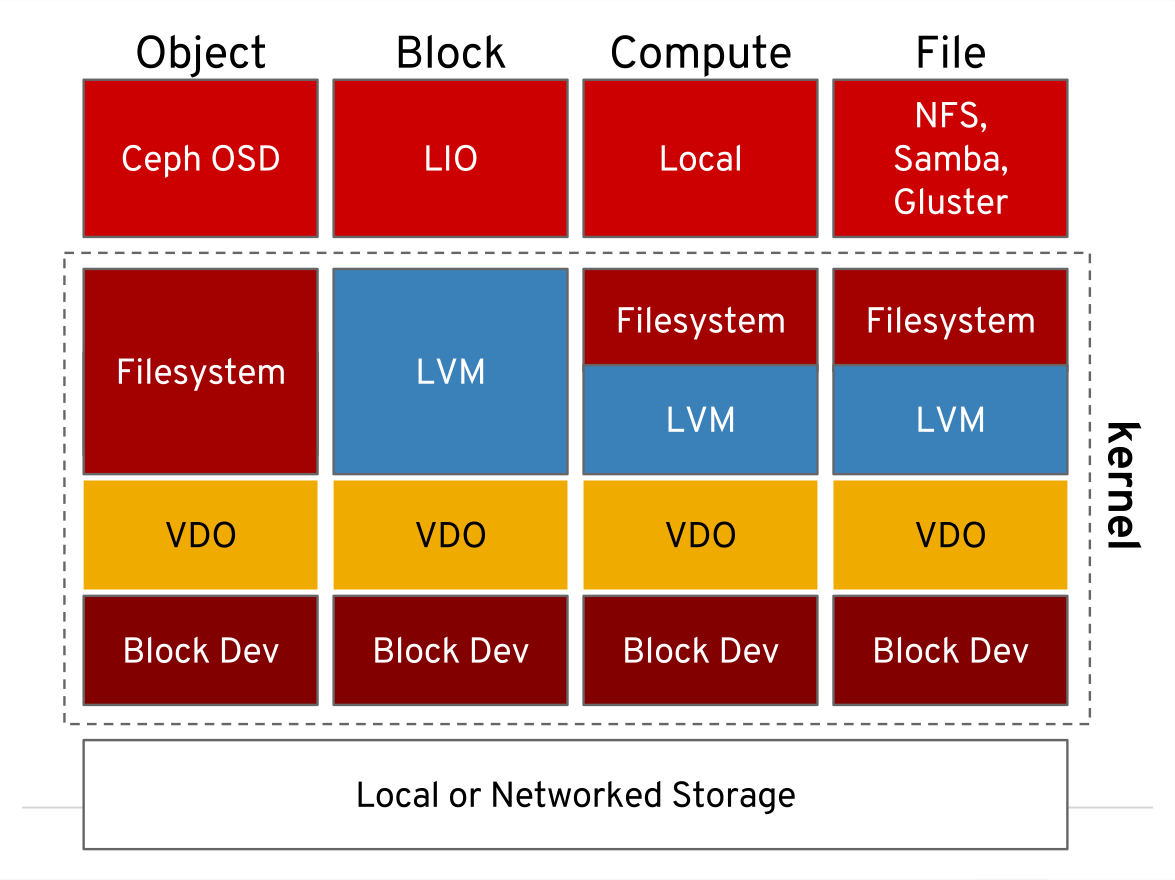
With Virtual Data Optimizer (VDO) it is possible to trade CPU/RAM resources for disk space.  This allows compression of files without the requirement of using gzip, rar or other compression tools.

image

Regarding use cases, VDO can, for example, be used under local filesystems, iSCSI or Ceph.

To install the application:

# yum install vdo kmod-kvdo

If you have an existing LVM from the previous videos you’ll need to unmount and remove:

# umount /mnt

Remove the fstab entry and run fdisk to delete the partitions created earlier.

# fdisk /dev/sdb

Use the d option to delete the partitions and w to write the changes.

Create the VDO volume:

# vdo create --name=vdo1 --device=/dev/sdb \ --vdoLogicalSize=30G --writePolicy=auto

VDO supports three write modes:

  • The ‘sync’ mode, where writes to the VDO device are acknowledged when the underlying storage has written the data permanently.
  • The ‘async’ mode, where writes are acknowledged before being written to persistent storage. In this mode, VDO is also obeying flush requests from the layers above. So even in async mode it can safely deal with your data – equivalent to other devices with volatile write back caches. This is the right mode, if your storage itself is reporting writes as ‘done’ when they are not guaranteed to be written.
  • The ‘auto’ mode, now the default, which selects async or sync write policy based on the capabilities of the underlying storage.

Then create the underlying filesystem:

# mkfs.xfs /dev/mapper/vdo1

Mount the new disk:

# mount /dev/mapper/vdo1 /mnt

RHCSA RHEL 8 – Create and configure set-GID directories for collaboration

Create and configure set-GID directories for collaboration

Your support on Ko-Fi is much appreciated: https://ko-fi.com/csg_yt

More information on Sophos Home Antivirus: http://bit.ly/SophosHP

More information about Hostinger VPS: http://bit.ly/H-VPS

This video is based on RHEL 8. Video to cover the section ‘Create and configure set-GID directories for collaboration’ for the RHCSA (Red Hat Certified System Administrator).

More information on the required learning: http://bit.ly/rhcsa8

Notes from the video:

Add a new group:

# groupadd accounts

Check group created:

# cat /etc/group | grep accounts

Make new directory for sharing

# mkdir -p /home/shared/accounts

Update ownership so no user owns the directory but the group does:

# chown nobody:accounts /home/shared/accounts

Set the GID bit:

# chmod g+s /home/shared/accounts

Give other users no access:
# chmod 770 /home/shared accounts

Confirm changes has been made:

# ls -lhtra /home/shared/

drwxr-s--- 1 nobody accounts 4.0K Jan 14 09:42 accounts 

Create two new accounts to test:

# useradd -G accounts accountant1

# useradd -G accounts accountant2

SU into the one of the new accounts and check the permissions is working:

# su - accountant1

# cd /home/shared/accounts

# touch accountsfile1

# exit

SU into the other user and confirm you can edit the exisiting file with VI or nano.

# su - accountant2

Test with another user to see if only group permissions are working:

# useradd user1

# su - user1

This command should fail with permission denied:

# cd /home/shared/accounts

RHCSA RHEL 8 – Extend existing logical volumes

Extend existing logical volumes

Your support on Ko-Fi is much appreciated: https://ko-fi.com/csg_yt

More information on Sophos Home Antivirus: http://bit.ly/SophosHP

More information about Hostinger VPS: http://bit.ly/H-VPS

This video is based on RHEL 8. Video to cover the section ‘Extend existing logical volumes’ for the RHCSA (Red Hat Certified System Administrator).

More information on the required learning: http://bit.ly/rhcsa8

Notes from the video:

Check current logical volume size:

# lvs

or

# lvdisplay

Confirm enough room in the virtual volume:

# vgs

or

# vgdisplay

To extend the logical volume:

# lvextend -L+2G /dev/vg1/lv1

Check that the volume has extened:

# lvdisplay

Confirm the filesystem type used on the logical volume:

# df -Th

Once confirmed run either the xfs filesystem resize command or the ext3/4:

EXT3/4:

# resize2fs /dev/vg1/lv1

XFS (use the mount point):
# xfs_growfs /mnt

Confirm the resize is successful:

# df -h

Design a site like this with WordPress.com
Get started